Adjustable strength
Use a light touch or a much stronger blur.
Apply a subtle or strong blur, compare the result with the original, and download the edited image.
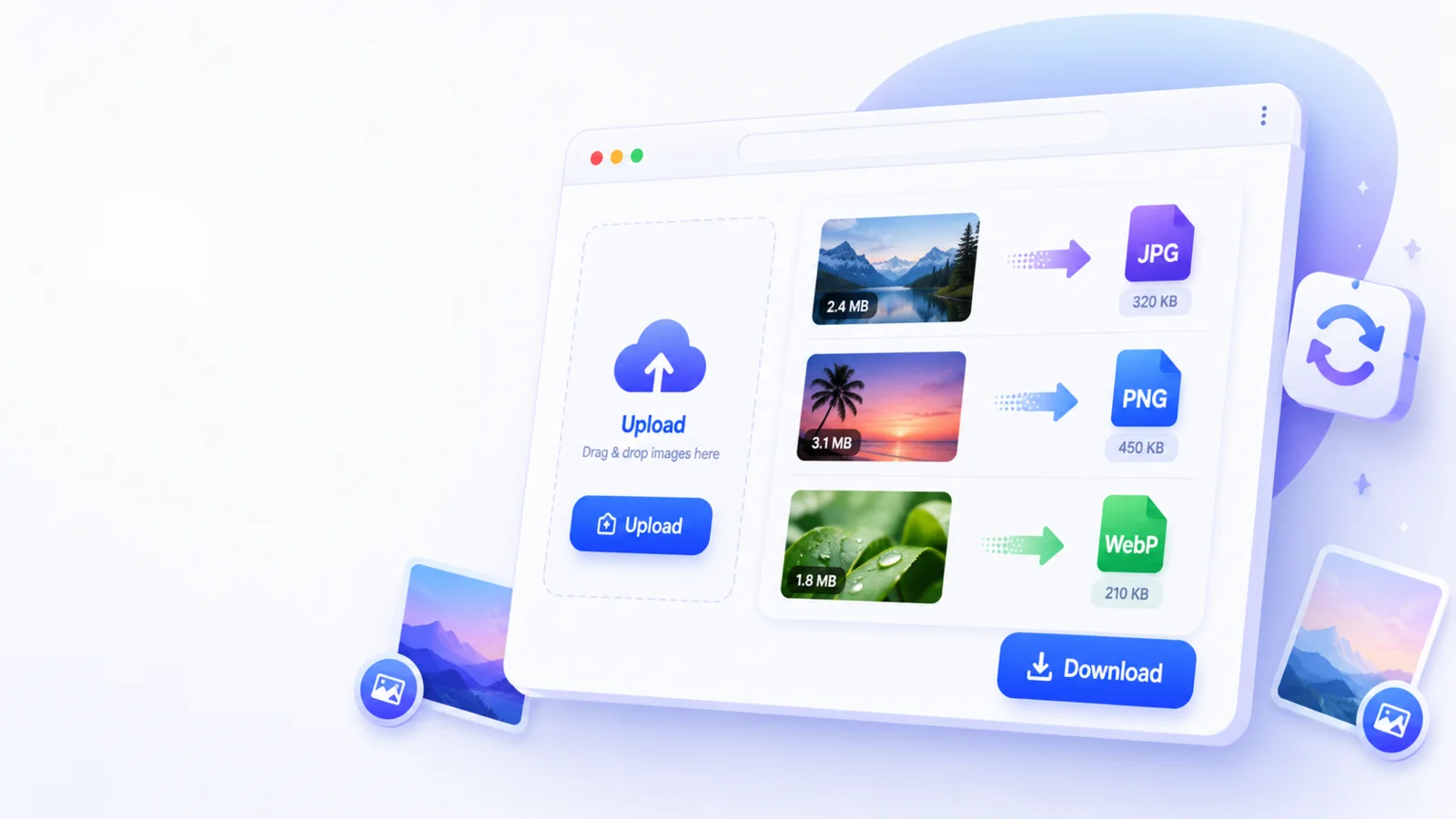
Upload panel
Tap, browse, drag, or drop. You can remove any image before processing.
Drop images here or tap to choose
Supports JPG, PNG, WebP, AVIF, GIF, BMP, TIFF. SVG is intentionally blocked for safer handling.
No image selected yet
Start by uploading one image, or upload many for batch compression and ZIP export.
Professional image workflow
Choose the blur strength, optionally adjust brightness or contrast, compare before and after, and download the edited result.
Use a light touch or a much stronger blur.
Review the original and edited image together.
Simple workflow
Choose one supported image or add a complete batch.
Adjust blur and any optional enhancement controls.
Start the real image job and follow its live progress.
Compare before and after, then download files or a ZIP.
Other powerful tools
About this tool
Only the settings relevant to this tool are shown, keeping the workflow simple and predictable.
Process multiple images, review every result, and download individual files or a completed ZIP.
Temporary previews and downloads use protected URLs and ownership checks.
Compare the original and processed image before downloading the final result.
Tool summary
Use the settings panel to choose the blur strength, process the file, and compare the original with the edited result.
Frequently asked questions
Upload an image, adjust the blur slider, select Process images, and download the softened result.
Yes. You can upload up to 30 files per batch, within the configured file-size and total-upload limits.
Images are stored privately outside the public web root. Preview and download access is protected, and files expire automatically.
Yes. When a batch completes, you can download individual images or the complete result as a ZIP archive.
No. The complete workflow runs through the browser interface without a desktop editor or plugin.
Ready when you are
Upload your files, choose the settings, and download the finished result.